
Settings in the app
Where trap settings live in the app, plus how Name, Notes, and map location work on the trap detail screen instead of under Settings.
On this page
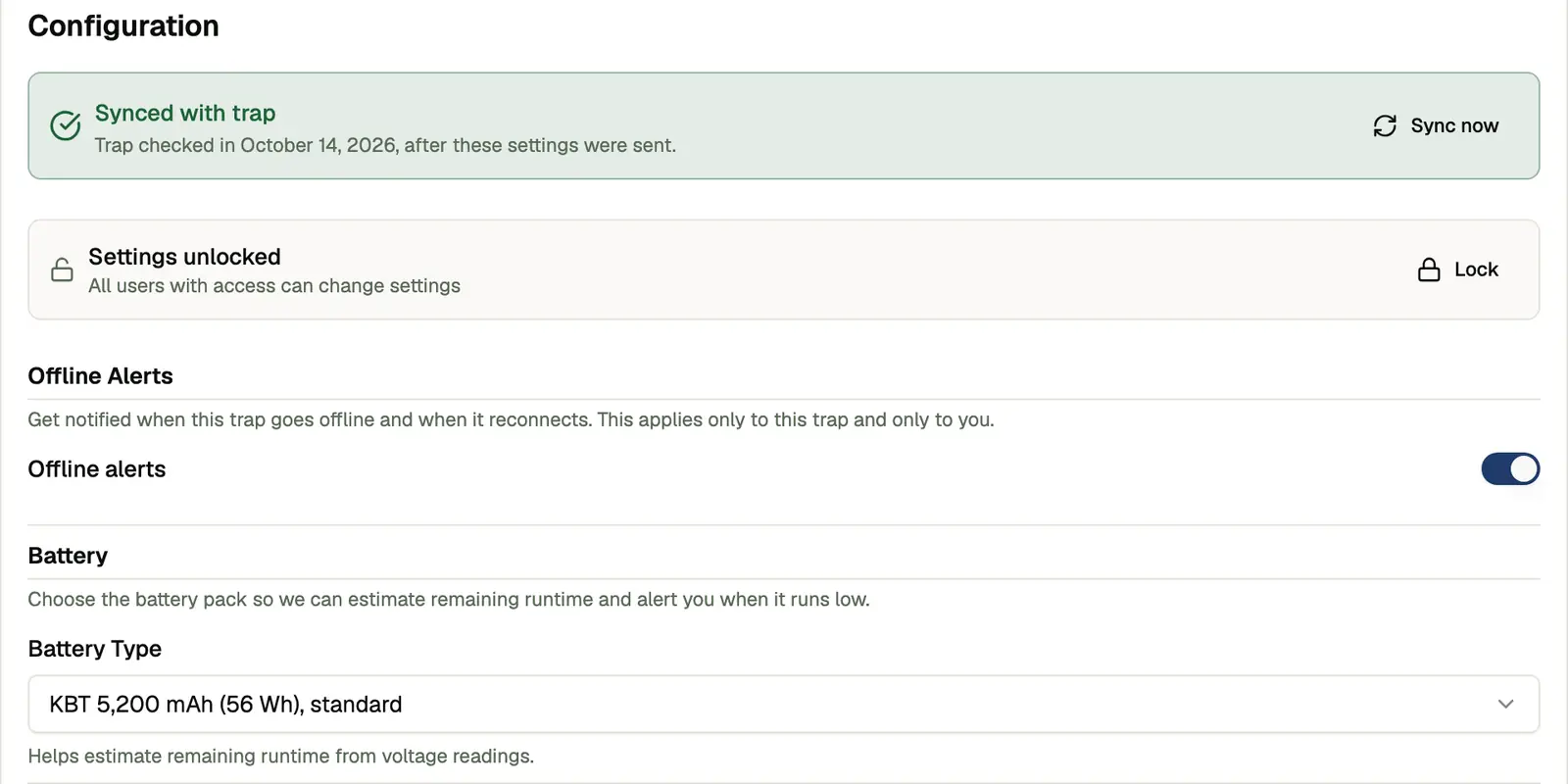
Trap settings control how each trap detects, captures, and alerts, including your capture distance, notification preferences, and camera behavior. On the web app, open a trap and select the Settings tab. Every setting is on that one page, grouped into sections. In the mobile app, open a trap, tap the Settings tab, then tap Trap settings. Select Save & Sync to send your changes to the trap.
A status line on the settings screen shows whether the trap has your latest settings, for example Synced with trap or Sent to the trap. Not confirmed. To send the saved settings again, select Sync now. See Sync status.
Name, Notes, and map location
Trap identity lives on the trap detail screen (top bar), not under Settings:
- Name: what the trap is called in your lists and alerts. Tap the name to edit (owner/manager). On the web app, a trap with no name shows as "Unnamed trap" followed by the last four characters of its Device ID, for example "Unnamed trap (…4083)". Give the trap a name to replace it.
- Notes: one free-form field for site detail (access directions, gate code, customer, etc.). Tap Notes in the top bar to edit. There is no separate “location note.”
- Map location: the site line under the name reflects the trap’s map fix (GPS or a location you set manually). Use Set location to place a pin or enter an address; that stamps a manual map position. It does not replace Notes.
Everyone you share the trap with can read and edit name and notes. Sharing has no view-only level, so every shared user is a manager. Leave out anything you would not want a shared user to see or change.
Where to go from here: