
Requesting photos
Ask your trap for a fresh photo at any time. Covers full-quality and quick image requests, the camera view, and browsing past images.
On this page
You can request a fresh photo of the inside of your trap at any time. Open the trap's detail screen. The most recent photo appears as a large image (the camera view) with the trap's controls beside it. There's no separate step to open the camera view.
Request a photo
To ask the trap for a new photo, use Request image. The trap captures a standard, full-quality photo and sends it to the app. Use this option to confirm what's inside or check image clarity.
You can also choose Quick image for a faster, lower-quality photo. Use it when you need a quick check without full detail. On the web app, Request image is on the photo itself and Quick image is in the Quick actions row of the trap's controls. In the mobile app, open the trap, tap Controls, and find both under Quick Actions.
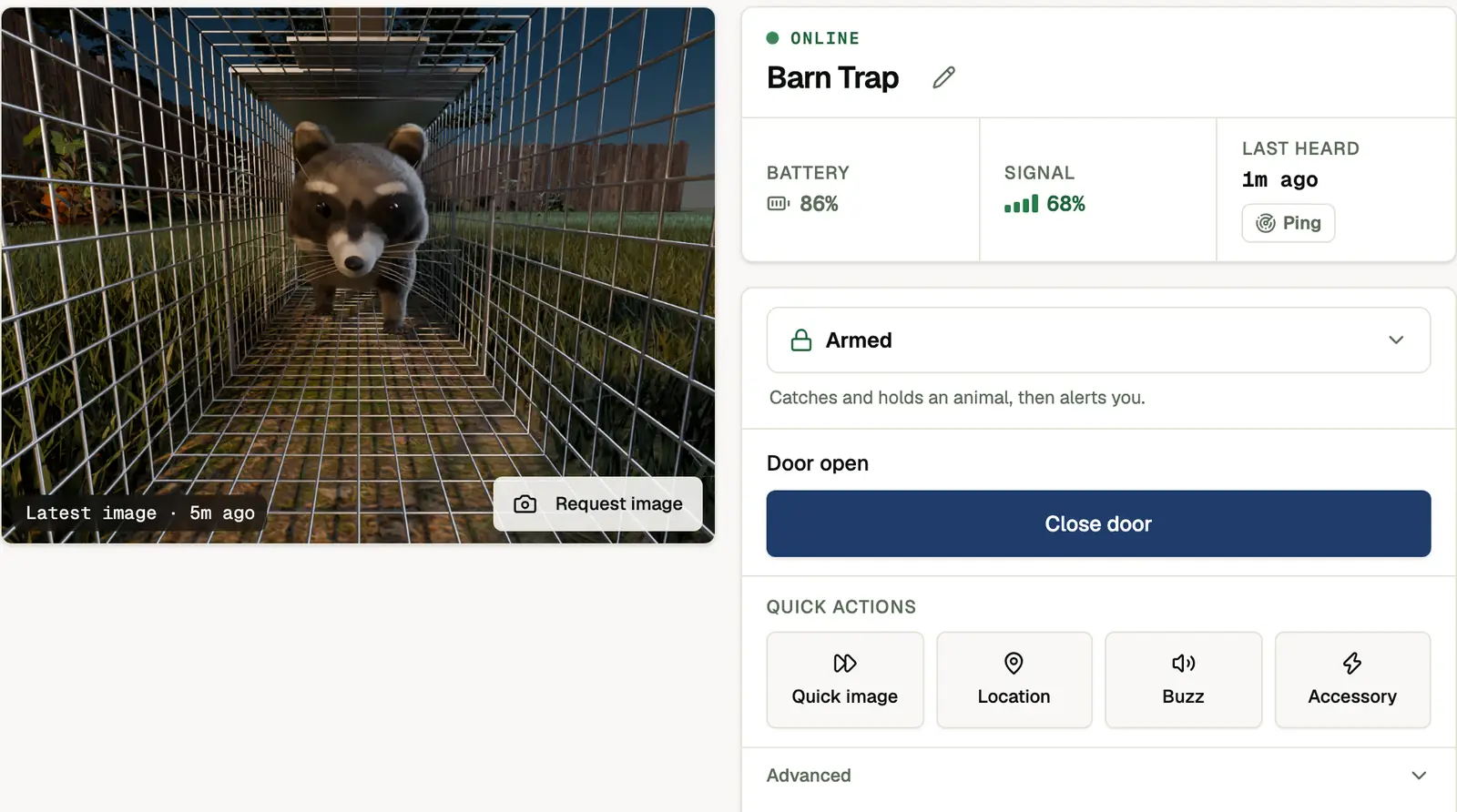
After you request a photo, a status pill on the camera view follows the trap's own progress: Camera starting…, Capturing image…, Image incoming…, then Processing image… while the photo is assembled in the cloud. It clears on its own once the fresh photo arrives. If the trap reports Image failed, give the camera a moment and request the image again.
Browse past images
From the camera view you can:
- Tap the image to open it in the full-screen viewer
- Use the Images tab to see earlier photos. See Images for filters, species labels, and the viewer.
If images look too dark, washed out, or blurry, see Camera for light-switching settings and fixes.
See also
- Trap control: all the commands you can send your trap
- When your trap takes photos: automatic capture timing
- Camera: image quality and night-vision settings